

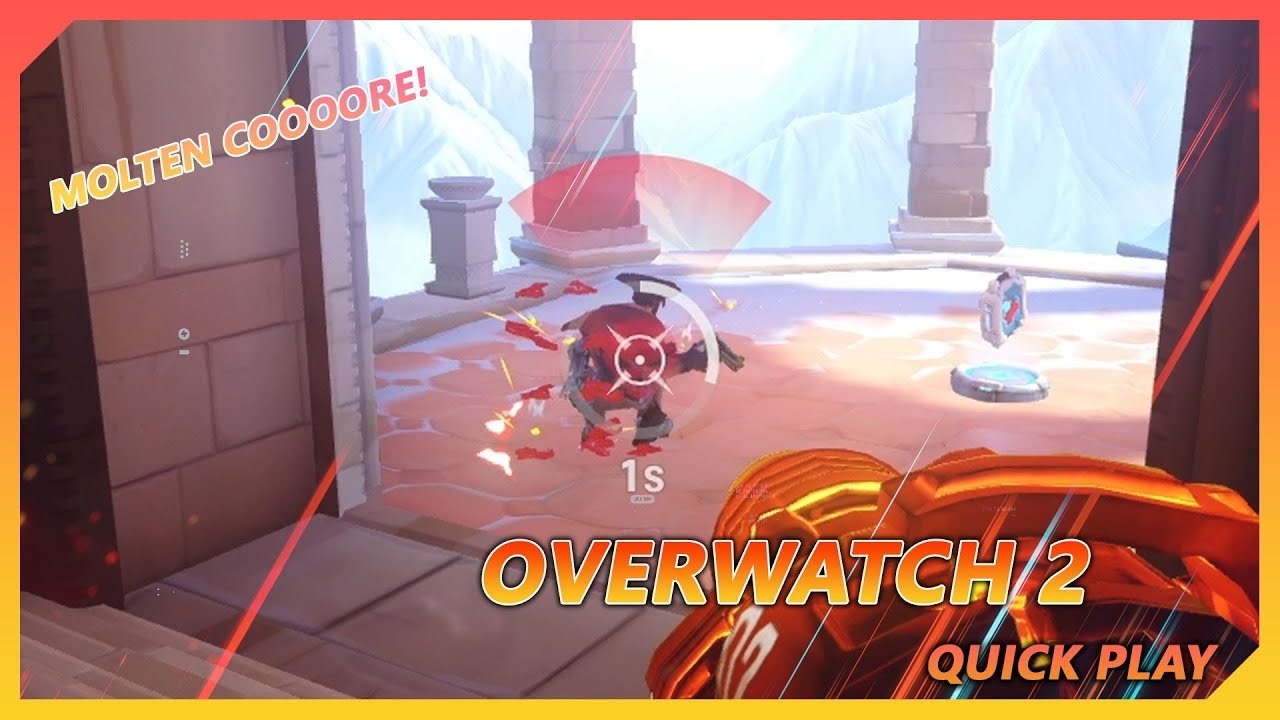
Blizzard apologizes for Overwatch 2 release

Overwatch 2 was released a couple of days ago, and some really lucky players have actually been able to play it. The usual server problems that appear at most releases of online games have been present, and Blizzard says that the game has been subjected to DDoS attacks. Now Blizzard has come out and apologized for the release, which they say did not meet the expectations of the players or their own.
Regarding actually getting into the game, they say they’ve updated a server to make the login itself more reliable, and they’re working on another update to reduce the risk of being disconnected once you get into the game. Unfortunately, they don’t mention anything about increasing server capacity, so expect continued queues during popular hours of the day.
When it comes to missing in-game items, they say half of the cases are due to the players in question simply not completing the process to merge their Overwatch and Overwatch 2 accounts, which is partly caused by a missing prompt to do so on some consoles. For the other half, it’s because the transfer takes a bit of time, but they assure that no items or data are lost.
In conclusion, they address the equally criticized as appreciated decision to require SMS verification for all accounts, and which in many cases requires having a phone plan rather than a prepaid card. Some believe this excludes people who can’t afford an ongoing subscription, some of whom have been playing the first Overwatch for years.
In response, Blizzard has now decided to remove the phone requirement for anyone who has played Overwatch since June 9, 2021. Those players will be able to play Overwatch 2 (or at least queue up to try to get in) starting October 7, which is tomorrow , If everything goes as planned.
Recommended Comments
Join the conversation
You are posting as a guest. If you have an account, sign in now to post with your account.
Note: Your post will require moderator approval before it will be visible.