
Jump to content
Only guests see ads. Create a free account and/or log in for a complete ad-free experience.

6 Screenshots

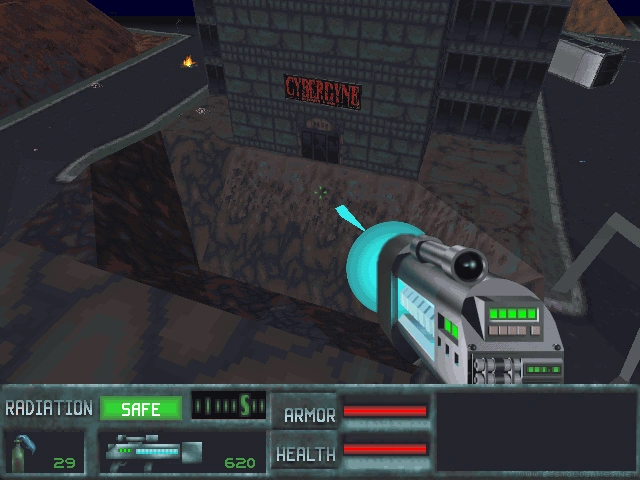
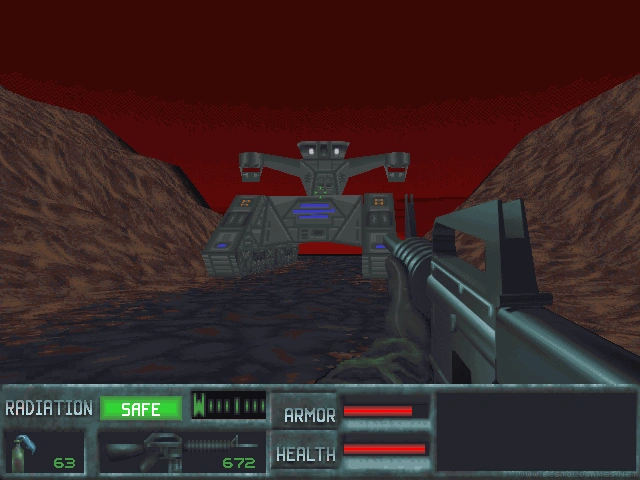
SkyNET was Bethesdy's final game based on a Terminator license. It was originally developed as a data drive for its predecessor Terminator: Future Shock, but during development it decided to become a standalone game. One of the noticeable improvements, this time was the ability of Xngine to display the game in a higher resolution of 640x480 (the previous game ran only in the classic 320x200). If you had Future Shock installed with SkyNET, you could also play the game in this new resolution. In addition to the new single-player campaign, new multiplayer options have been added.
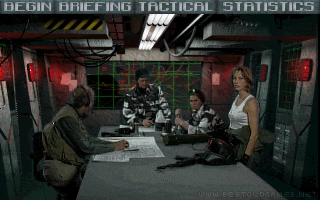
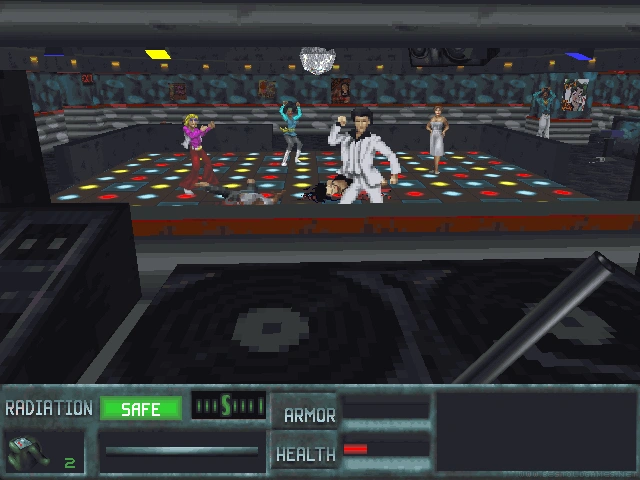
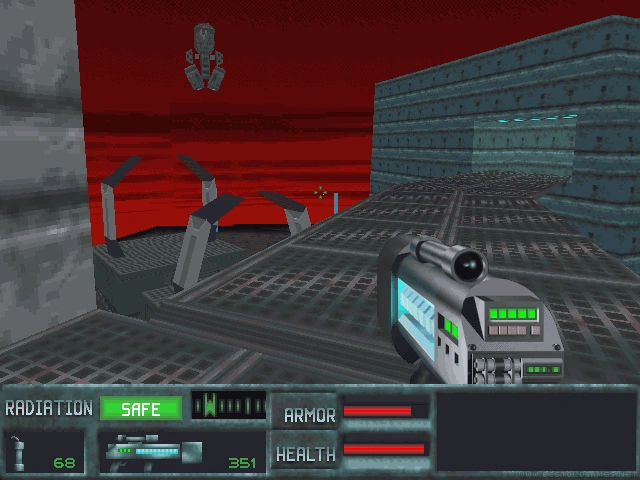
Like any sequel, SkyNET had to show that it knew more. The player's task is to prevent the machine from launching the recovered nuclear weapon. More variable environments, day and night missions, as well as driving and flying machines. All this is offered by SkyNET, wrapped in feature briefings and usual acting performances, as was the case at the time.


Developer(s)

Bethesda Softworks

Publisher(s)

Bethesda Softworks

Theme(s)

Post-Apocalyptic
Robot
Sci-Fi / Futuristic
Shooter

Recommended Emulator

DOS

Emulator URL(s)

https://www.throneofgeeks.com/files/file/6-d-fend-reloaded/

User Feedback

There are no reviews to display.

This title on this page are offered with the knowledge that it is currently freeware and/or abandonware. If the status of the title changes, or you would like these files removed, please do not hesitate to contact us.

Only guests see ads. Create a free account and/or log in for a complete ad-free experience.

Important Information

We have placed cookies on your device to help make this website better. You can adjust your cookie settings, otherwise we'll assume you're okay to continue. Read our Terms of Use and Privacy Policy for more information.

Configure browser push notifications

Chrome (Android)
  1. Tap the lock icon next to the address bar.
  2. Tap Permissions → Notifications.
  3. Adjust your preference.
Chrome (Desktop)
  1. Click the padlock icon in the address bar.
  2. Select Site settings.
  3. Find Notifications and adjust your preference.