


Huge GTA 6 Leak - Videos, Images and Source Code Available Online

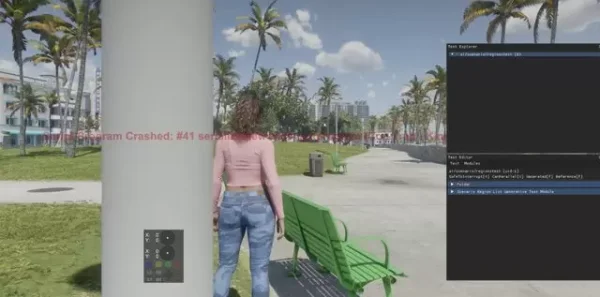
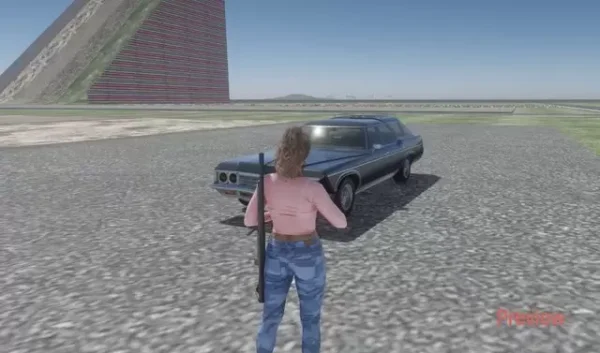
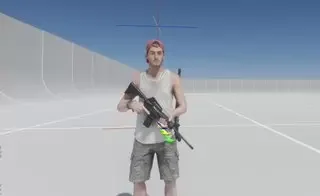
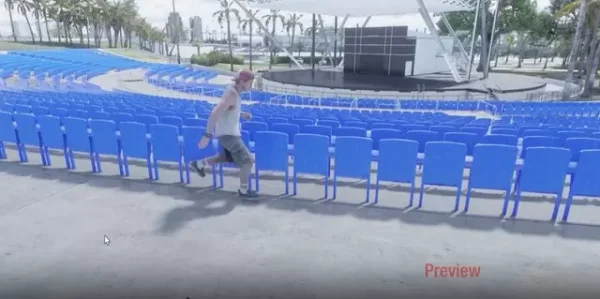
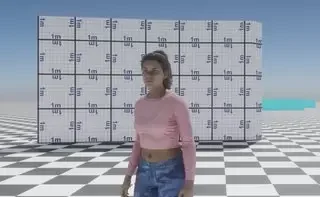
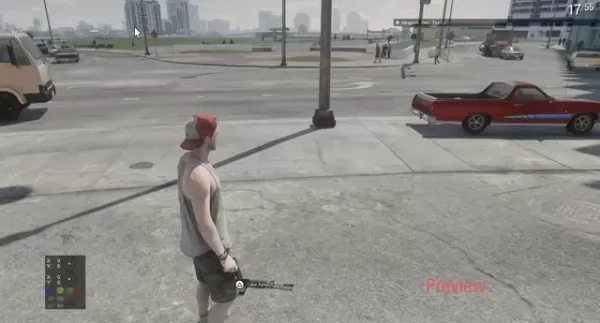
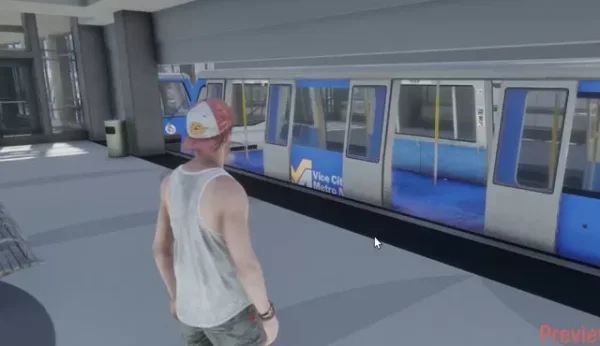
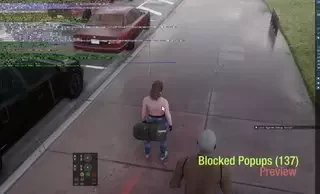
Someone has managed to come across a huge collection of footage from Rockstar's upcoming GTA game and then leaked it online. It's about leaked footage and images from GTA 6 which is currently in development. In addition to images and videos, it has also been confirmed that more serious things such as the source code for the game were leaked. The leaked material must have come from the staff's communication logs in the Slack app. Some videos also appear to be taken from Rockstar's in-house development program, which is hard to fake. Below are some tweets with the leaked material.
Leaking images and videos may be fine, but leaking the source code can have more serious consequences in that the game is delayed. Rockstar themselves have not given any statement about the leak, but given the nature of the leak, there will probably be something in the next few days. Industry expert Jason Schreier has confirmed the leak.
"Not that there was much doubt, but I’ve confirmed with Rockstar sources that this weekend’s massive Grand Theft Auto VI leak is indeed real. The footage is early and unfinished, of course. This is one of the biggest leaks in video game history and a nightmare for Rockstar Games.
Recommended Comments
Join the conversation
You are posting as a guest. If you have an account, sign in now to post with your account.
Note: Your post will require moderator approval before it will be visible.