Jump to content
Only guests see ads. Create a free account and/or log in for a complete ad-free experience.

1 Screenshot

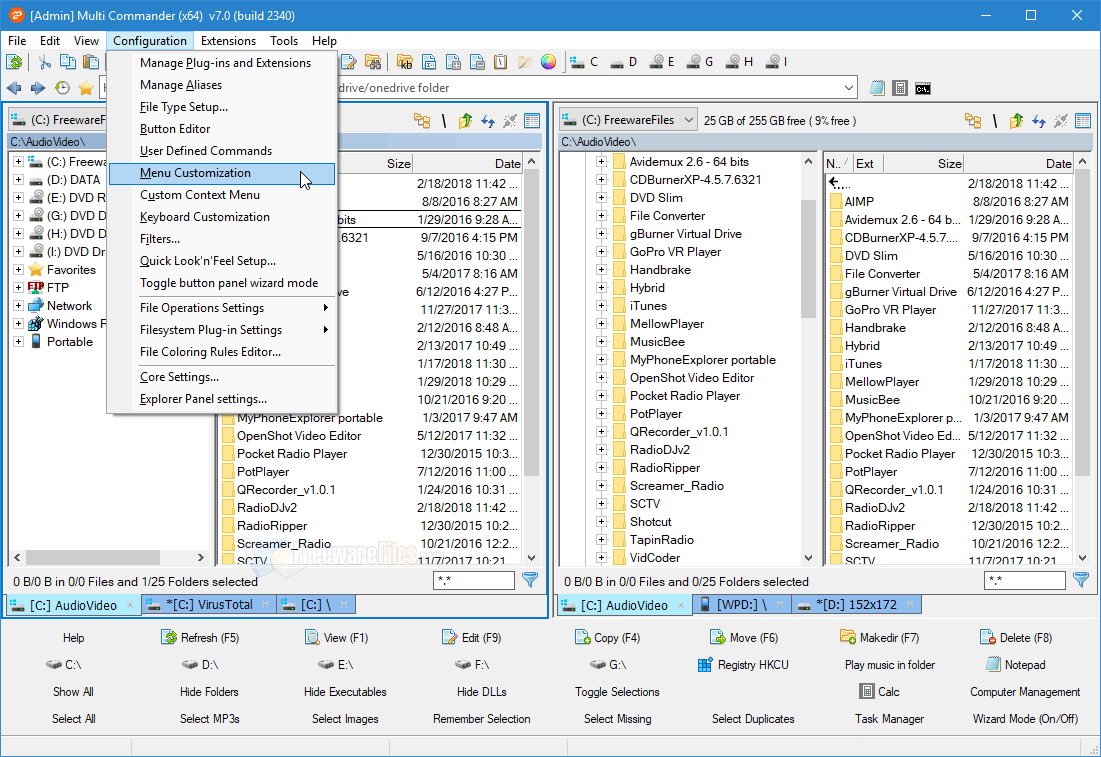
Many people rely on Windows Explorer when using their PCs. It works well but has very limited features, which is why those who want more look for other alternatives. A great example is Multi Commander. This free file manager derives its strength from the fact that it allows users to do many advanced tasks with relative ease. In addition to standard features like viewing, renaming, copying and moving, the program includes such advanced functions as auto-sorting, auto-unpacking, searching, scripting and browsing inside archives.

Other useful features include:

  • Dual panel layout
  • Keyboard shortcut for all tasks
  • Task automation
  • Opening multiple folders using tabs
  • Catching for faster browsing of files
  • Completing tasks in the background
  • Increasing functionality with the help of plugins and extensions
  • Customizing colors and layouts according to individual preferences
  • Compatibility with many file formats
  • Filtering to limit viewable items
  • Compatibility with 32bit and 64bit systems
  • Comparing files and making relevant selections
  • Hiding executable files and folders to improve security

User Feedback


This is by far one of the best file explorers I have ever used. Simple and powerful and tons of features.

This title on this page are offered with the knowledge that it is currently freeware and/or abandonware. If the status of the title changes, or you would like these files removed, please do not hesitate to contact us.

Only guests see ads. Create a free account and/or log in for a complete ad-free experience.

Important Information

We have placed cookies on your device to help make this website better. You can adjust your cookie settings, otherwise we'll assume you're okay to continue. Read our Terms of Use and Privacy Policy for more information.

Configure browser push notifications

Chrome (Android)
  1. Tap the lock icon next to the address bar.
  2. Tap Permissions → Notifications.
  3. Adjust your preference.
Chrome (Desktop)
  1. Click the padlock icon in the address bar.
  2. Select Site settings.
  3. Find Notifications and adjust your preference.