


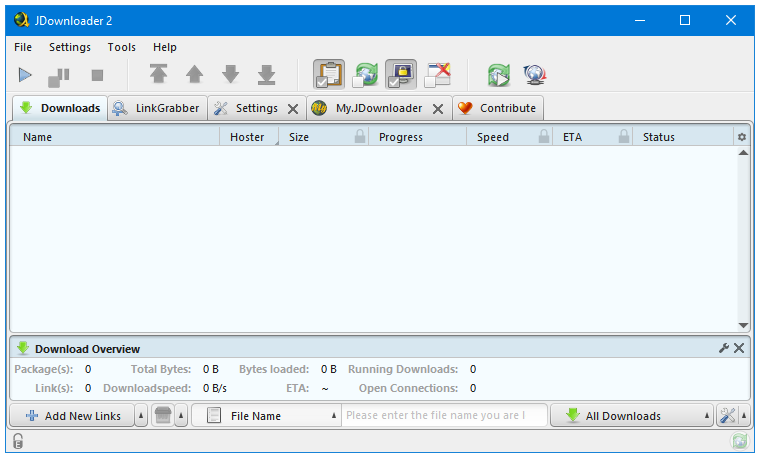
The Media Downloaders are the software that Grab or Capture multimedia files from social media websites. These files can be audio, video, or even images. Similar to the other types of download managers, most of these dedicated audio, video, or image downloaders products also include many kinds of Adware, Trackers, and PUP. It is difficult to stay uninfected while using one of these. Enter JDownloader, the one of a kind mass media download manager. The options present in this epic software are endless. Along with social websites, it supports downloading from countless file-sharing websites; you can add site-specific free or premium accounts to enjoy respective services. A clean, feature-rich, and complete mass media downloading software that deserves a place in your computer.
Features:
- Platform independent. (Windows, Linux, Mac, ..)
- Runs on Java 1.5 or higher
- Complete Open-Source (GPL)
- 24-hour support
- Download several files at once
- Download with multiple connections
- JD has an own powerful OCR module
- Automatic extractor (including password list search) (Rar archives)
- Theme Support
- Multilingual
- About 110 hoster and over 300 decrypt plug-ins
- Reconnect with JDLiveHeaderScripts: (1400 router supported)
- Webupdate
- Integrated package manager for additional modules (eg. Webinterface, Shutdown)
There are no reviews to display.