


SirMadsen
-
Joined
-
Last visited
Everything posted by SirMadsen
-
 Sometimes when installing a fresh Windows you might not be able to connect to a shared network drive. This is especially true with Windows 11 and 24H2and up. There is a easy solution for this. I searched for hours to find this so to save you time here's the fix (might not work for you depending on the issue). The short explanation. Windows 11 Home 25H2 that I use have added more secure and strict network features. This prevents Windows from discovering drives in your network that are not "verified" and have no secure connection, even if you have a username and password. What we need to do is open up insecure connections and allow guest access. Allow Insecure Connections from PowerShell.The final method to fix the error "Network path not found – 0x80070035" in Windows 11 24H2, is to allow the insecure guest logons, using PowerShell.* 1. Open PowerShell as Administrator (important) and use the following three (3) commands one by one: Set-SmbClientConfiguration -EnableInsecureGuestLogons $true -Force Set-SmbClientConfiguration -RequireSecuritySignature $false -Force Set-SmbServerConfiguration -RequireSecuritySignature $false -Force Restart to make sure and try to connect again using \\mynetworkdrive or \\drivesipadress from explorer. If you have any other tips, leave them in the comments.
 -
The Brave Browser has gained a strong reputation for privacy-focused features (e.g., blocking ads/trackers by default), but it has also faced several controversies and criticisms. Here are some of the main ones: Key ControversiesAffiliate link injections In 2020 Brave was discovered to automatically append affiliate referral codes to certain cryptocurrency-exchange URLs (e.g., when a user typed or visited “binance.com” or “coinbase.com” via the address bar) without explicitly asking the user. (Wikipedia) The company later described it as a “mistake” and said affiliate links would become opt-in. (Wikipedia) Many users felt this behaviour conflicted with the browser’s privacy & transparency promises. Unsolicited donations via the Rewards system Brave introduced a “Rewards” model involving its own token (Basic Attention Token / “BAT”) to remunerate users and content creators for viewing privacy-respecting ads. (Wikipedia) Some users and content creators complained that they were being tipped or designated for donations without their consent. For example:“Users had tipped his channel through the Brave Rewards program despite him not having signed up for the program or consenting to receive funds.” (Wikipedia) Additionally, Brave implemented stricter wallet-/verification-requirements for withdrawals of BAT in some regions, frustrating users. (Brave Community) Privacy & security bugs In 2021, a bug was found in Brave’s “Private Window / Tor” mode: DNS queries for “.onion” addresses were leaking outside the Tor network. (Nasdaq) Some commentators argue that despite Brave’s privacy positioning, it’s still built on the Chromium engine and inherits many of its broader platform dependencies and potential exposure. (onerep.com) Business model and publisher conflict Brave’s model of blocking third-party ads and then offering its own built-in “privacy-respecting” ads worried many web publishers. They argued Brave was intercepting ad revenue streams they rely upon. (WIRED) Some see a potential conflict of interest: the browser is both blocking ads/trackers (good) and monetising via new channels (could raise trust issues: who’s controlling what?). User trust / perception issues Some users and observers question Brave’s transparency: e.g., why features that “should be optional” were enabled by default; how easily “rewards” and “tokens” are introduced; how new features (crypto wallet, in-built VPN, etc.) may complicate the privacy promise. For example: “It added affiliate links, stuff that no one would really ever care about.” (Reddit) Some in the privacy community argue Brave’s combination of crypto incentives, own token, and aggressive feature set may dilute its “pure” privacy stance. (Reddit) Installing extra services without clear user consent There are reports that on Windows, a paid “VPN” service (Brave Firewall + VPN) was bundled with the browser installation for some users even if they hadn’t explicitly opted in. (Wikipedia) While Brave claims that the service remains inactive until purchased, some users felt the bundling was misleading. Important Context & MitigationsMany of the controversies appear to be addressed by Brave (e.g., the affiliate link issue, the Tor-mode DNS leak) or the company has responded with fixes. Brave remains open-source (so its code is inspectable) and aims to differentiate via privacy features that many mainstream browsers don’t emphasise. (onerep.com) Using Brave doesn’t guarantee perfect anonymity, especially if you’re looking for hidden identity, you might still prefer specialised tools (VPNs, Tor Browser itself, etc.). Brave itself warns that their “Tor window” mode isn’t equivalent to the dedicated Tor Browser. (Reddit) Much of the debate is about trade-offs: Brave’s convenience + privacy features vs trusting its business model and feature expansion (crypto wallet, tokens, VPN) rather than purely being “just a browser”. My TakeIf I were to summarise: Brave is a strong privacy-oriented browser and for many users it’s a reasonable choice, but it still carries some caveats: If you’re mostly concerned with blocking trackers/ads and want an easier switch from something like Chrome, Brave is solid. But if you hold a very high standard of “no business surprises / full transparency / minimal dependencies”, you might prefer a more minimal browser (or pair Brave with additional tools). It’s wise to understand Brave’s rewards/crypto model and ensure you’re comfortable with that part (or disable if you prefer). Always keep in mind: no browser is perfect. Even Brave has had major hiccups (bugs, trust issues, etc.). Also read this post for even more details: https://thelibre.news/no-really-dont-use-brave/
-

From the album: 4K Ultra Wide Wallpapers
© Sirmadsen
-
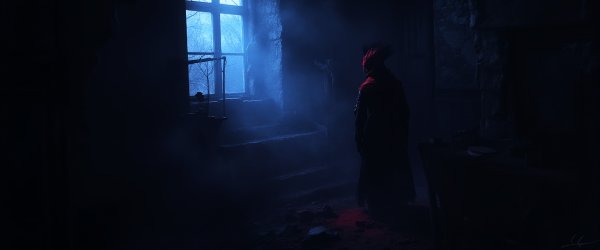
From the album: 4K Ultra Wide Wallpapers
© Sirmadsen
-
Wallpapers in ultra wide 4K resolution (3840x1600). Free to download and use. Mixed dark wallpapers with fantasy, industrial, patterns and more. Free wallpapers, 4K wallpapers, ultra wide wallpapers.
-
0450-26153964.jpg
-
0450-26153962.jpg
-
 0450-26153960.jpg
-
 0450-26153959.jpg
-
 0450-26153958.jpg
-
 0450-26153957.jpg
-
 0450-26153956.jpg
-
 0450-26153955.jpg
-
 0450-26153954.jpg
-
 0450-26153953.jpg
-
 0450-26153952.jpg
-
 0450-26153949.jpg
-
 0450-26153947.jpg
-
 0450-26153945.jpg
-
 0424-770092547.jpg
-
 0424-770092546.jpg
-
 0424-770092543.jpg
-
 0424-770092540.jpg
-
 0424-770092539.jpg
-
 0424-770092536.jpg
-
-
From the album: 4K Ultra Wide Wallpapers
© Sirmadsen
-
From the album: 4K Ultra Wide Wallpapers
© Sirmadsen
-
From the album: 4K Ultra Wide Wallpapers
© Sirmadsen
-
From the album: 4K Ultra Wide Wallpapers
© Sirmadsen
-
From the album: 4K Ultra Wide Wallpapers
© Sirmadsen
-
From the album: 4K Ultra Wide Wallpapers
© Sirmadsen
-
From the album: 4K Ultra Wide Wallpapers
© Sirmadsen
-
From the album: 4K Ultra Wide Wallpapers
© Sirmadsen
-
From the album: 4K Ultra Wide Wallpapers
© Sirmadsen
-
From the album: 4K Ultra Wide Wallpapers
© Sirmadsen
-
From the album: 4K Ultra Wide Wallpapers
© Sirmadsen
-
From the album: 4K Ultra Wide Wallpapers
© Sirmadsen
-
From the album: 4K Ultra Wide Wallpapers
© Sirmadsen
-
From the album: 4K Ultra Wide Wallpapers
© Sirmadsen
-
From the album: 4K Ultra Wide Wallpapers
© Sirmadsen
-
From the album: 4K Ultra Wide Wallpapers
© Sirmadsen
-
From the album: 4K Ultra Wide Wallpapers
© Sirmadsen
-
From the album: 4K Ultra Wide Wallpapers
© Sirmadsen
-

From the album: 4K Ultra Wide Wallpapers
© Sirmadsen
-

From the album: 4K Ultra Wide Wallpapers
© Sirmadsen