

Only guests see ads. Create a free account and/or log in for a complete ad-free experience.
- Replies 1
- Views 592
- Created
- Last Reply
Top Posters In This Topic
-
SirMadsen 1 post

Popular Days
Most Popular Posts
-
Recap: Download a texture pack and save it to a folder. Open up the games resource folder and copy/paste your downloaded file into that folder. Go into the game and go to options
Posted Images
Featured Replies
Only guests see ads. Create a free account and/or log in for a complete ad-free experience.
Welcome to a beginner-friendly tutorial on how to download and install Minecraft Texture Packs! Texture packs are a fun and easy way to modify your world! By now, you've heard of and probably even seen Texture Packs, but you were never sure how to get them into your world. This simple, easy to follow guide will have you playing your favorite game with an entirely different experience in a matter of minutes! Let's get started!
What are Texture Packs?
Texture Packs change in-game textures of the GUI, mobs, items, and...blocks! Some packs change all of these, while others change just one or two. You'll find packs that change the native resolution of 16x16 to higher resolution "HD" textures while others will stay true to the native resolution. Some will change your world to mimic a video game, while others will have you playing in a pastel world. There are SO many different texture packs out there, you'll be sure to find one that suits you!
Some Texture Packs support the latest snapshot of Minecraft, while others support older versions, so you'll want to be sure to choose a pack that's compatible with the version your using. Navigate to the Texture Pack section of ToG. Select the appropriate game version and browse different packs.
Are Texture Packs the same thing as Minecraft Resource Packs?
Well, yes! There is no difference between Minecraft Texture Packs and Minecraft Resource Packs. In Java Edition 1.6 texture packs were replaced with resource packs - which not only change the textures of the game, but also things like sounds, music, language files, fonts, splash texts and more.
1. Download a texture pack and save it to a folder.
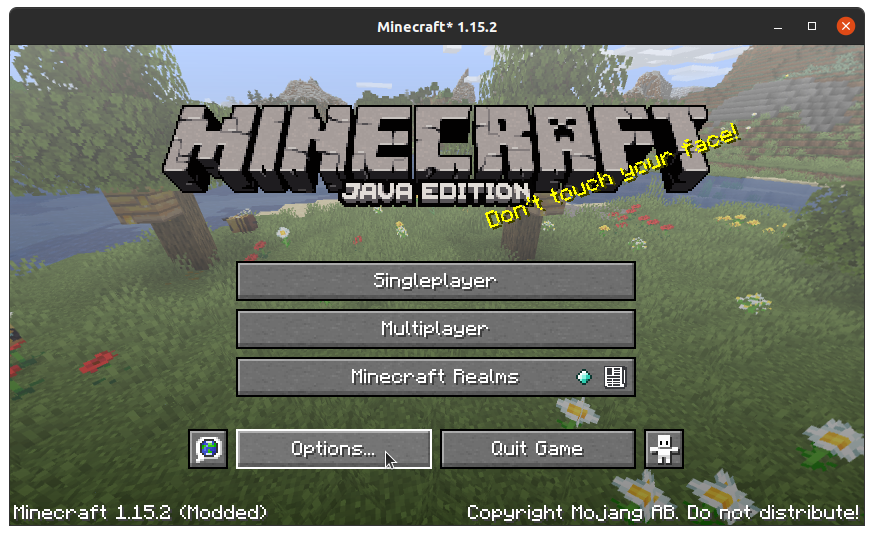
2. Open up Minecraft and click on "Options..."
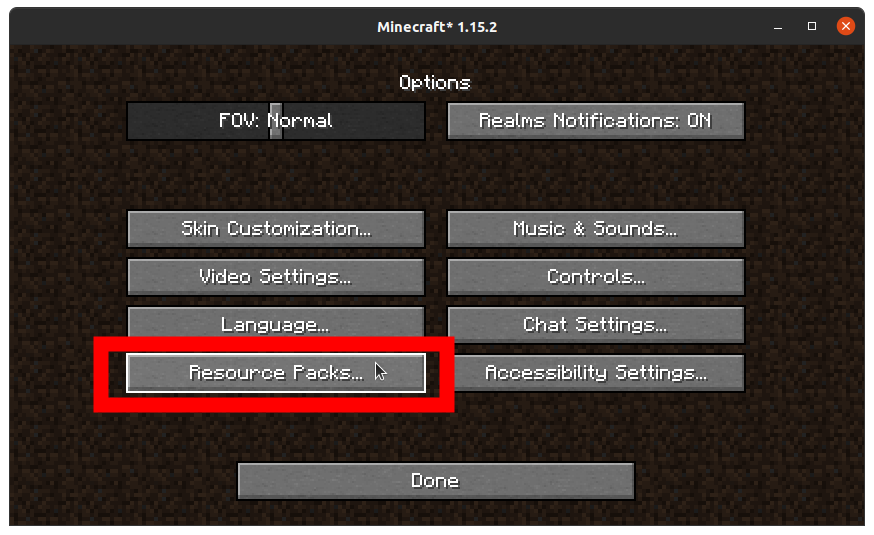
3. Click "Resource Packs...."
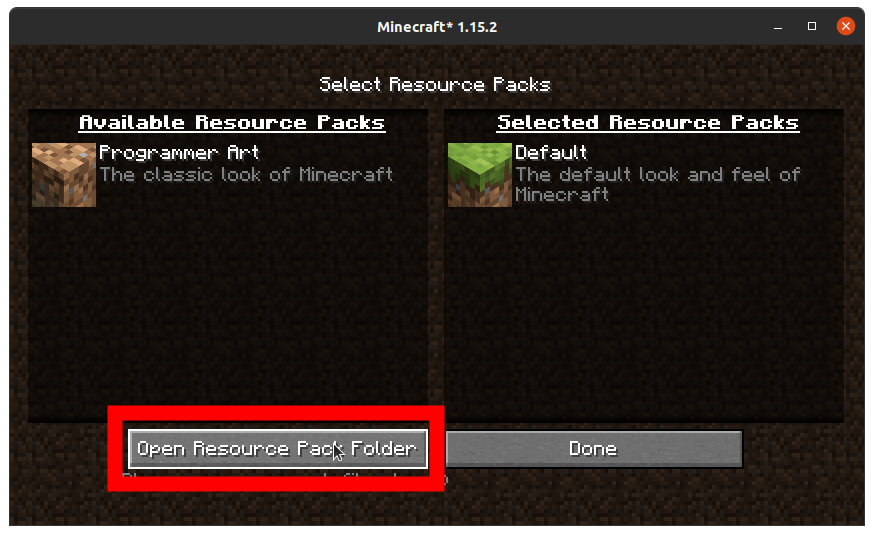
4. Then, click on "Open Resource Pack Folder"
5. The resourcepacks subfolder of .minecraft will pop up. In a separate window, open up your Downloads folder (where you saved your pack). Drag and drop the file from your Downloads folder to your resourcepacks folder.
6. Close both windows. You won't see your pack available yet; click "Done".
7. Click "Resource Packs..." for a second time.
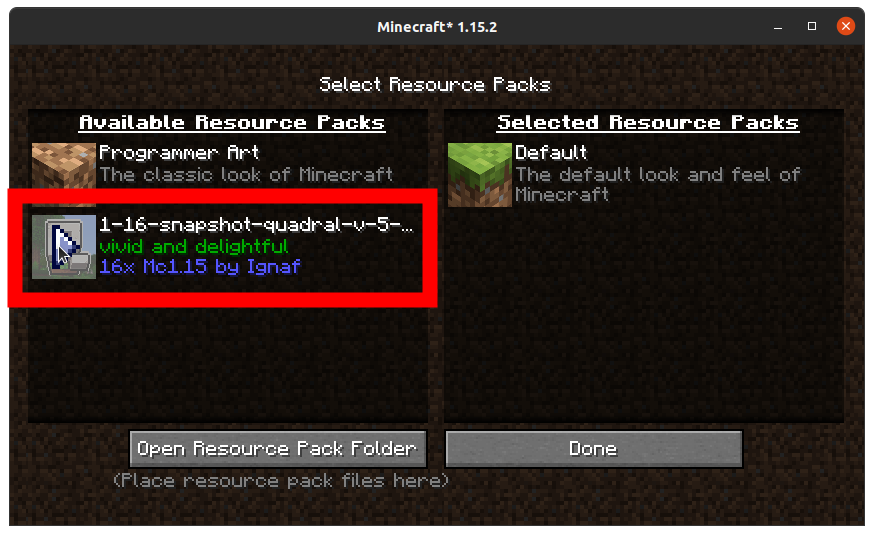
8. You should see your texture pack over in the left hand column. Hover, and click on the triangle/arrow pointing to the right.
9. Your pack should now be in the right hand column. Click "Done"
10. Your pack will be loaded, and you'll see the change in the next menu. Click "Done" on that menu.
And that's it! Go have fun.
☕ It's all good ❤️