


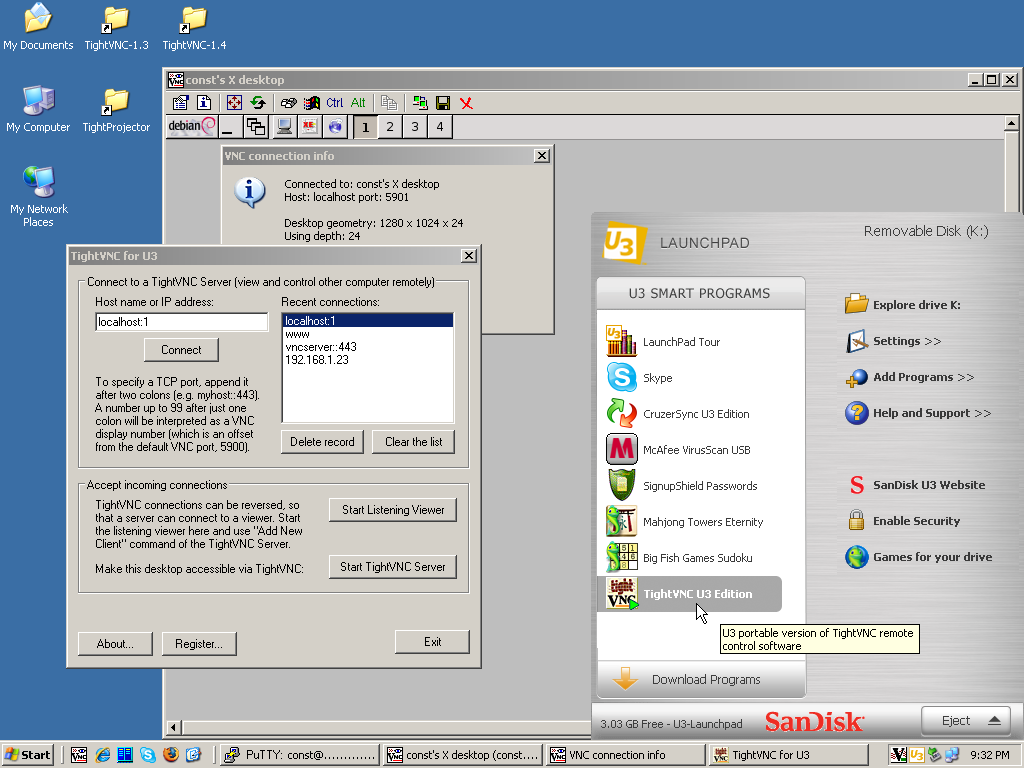
TightVNC is a free remote desktop control software package that allows you to log in and use a remote machine's desktop just as if it were your own.
Tight VNC has a handy tool for both tech support and education. Saving time, money, and sometimes - frustration. Another great use is to run it on your home machines so you can securely check your items when you are away.
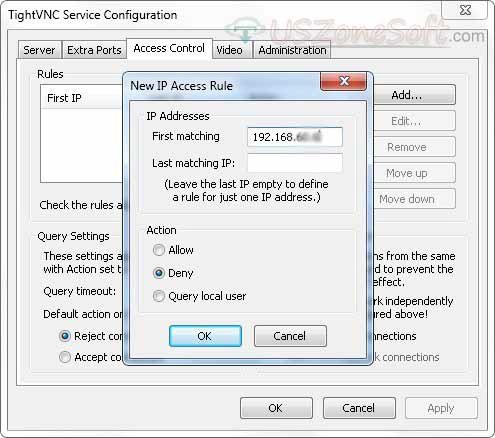
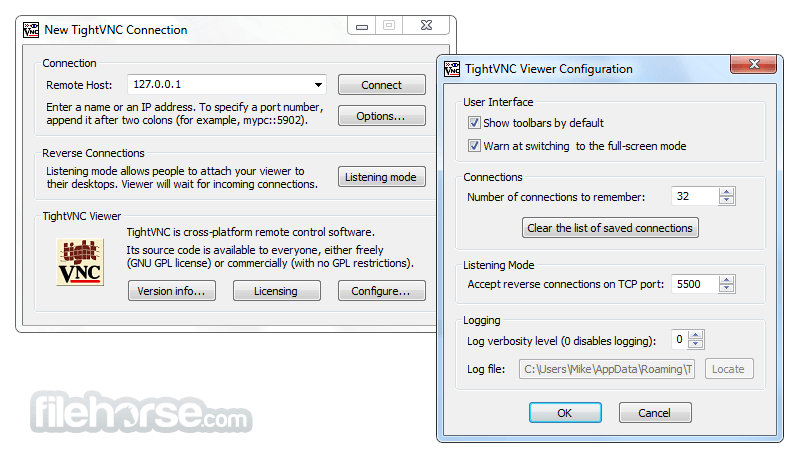
Like other Virtual Networking Clients, Tight VNC has two parts that you need to know: The Server and the Viewer. The Server shares the screen it is running on, and the Viewer connects controls the server. This means the machine you want to connect to must have the server-side installed in it first. You then connect to that server by typing the IP address of the device you have installed the server on. From there, it is as easy as running your machine.
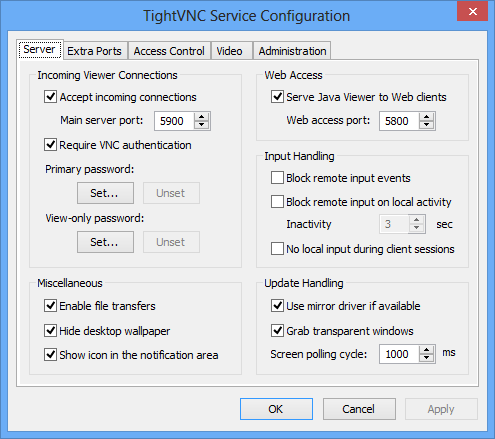
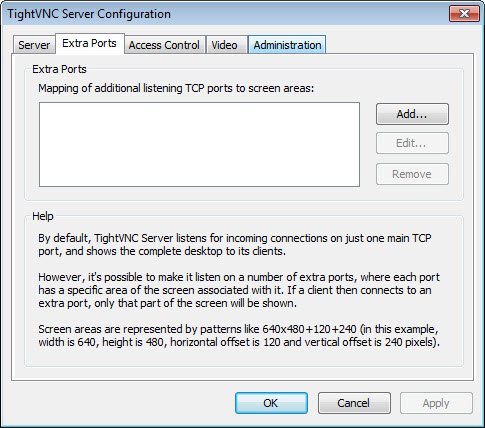
Some routers may give you fits trying to configure the ports correctly, so TightVNC Server also contains a small webserver. This server listens for incoming HTTP connections on the 5800 port. You can change that to whatever you like.
There are no reviews to display.